
Upload by Size is a product your printer can offer instead of the full gang sheet editor. You upload artwork, type the width and height you want it printed at, set a quantity, and add it to the cart. Your printer arranges the designs on the sheet afterwards, so there is no canvas to lay out yourself.
Open the Tool
Upload by Size is set up as its own product, so you reach it by opening that product in your printer's store. Your printer chooses the product name, so it may be called something other than "Upload by Size" in their catalogue. The upload window opens straight away rather than loading the editor.
Sign in before you upload. Signing in adds an Uploaded Files tab to the window, which keeps everything you have uploaded before available to reuse.
Place an Order
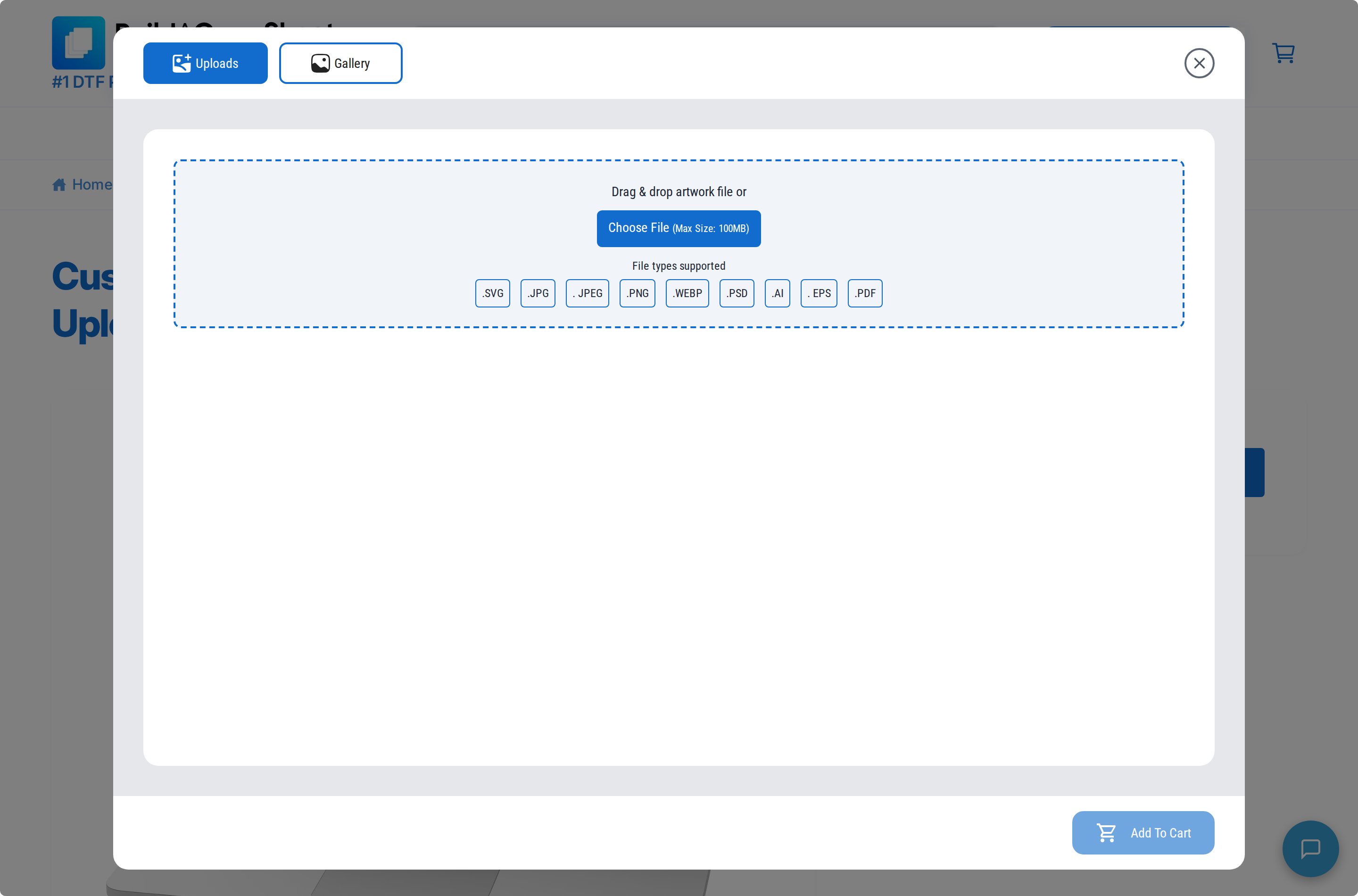
- Click Choose File, or drag your artwork onto the upload area.
- Enter the printed Width and Height you want for the design. See Set the Print Size of Your Design.
- Set Quantity to the number of copies you want printed. See Order Multiple Copies of a Design.
- Check the Resolution and price figures under the panel. See Check Resolution, Area, and Price.
- Click Add More to upload the next design, and repeat from step 2.
- Click Add To Cart when every design is set up. See Review Your Order Before Checkout.
What Each Control Does
- Upload Artwork by Size covers the Upload Files, Gallery, and Uploaded Files tabs, the accepted file types, and adding more designs to the same order.
- Set the Print Size of Your Design covers Width, Height, Keep Aspect Ratio, and the preset size buttons.
- Order Multiple Copies of a Design covers the Quantity field and changing quantities later in the cart.
- Remove a Design's Background covers the Remove Background toggle.
- Upscale a Low-Resolution Design covers the Upscale Quality toggle.
- Check Resolution, Area, and Price explains the Resolution, Price, Total Area, and Minimum figures.
- Review Your Order Before Checkout covers the cart page.
Limits Worth Knowing
- Each file must be 100 MB or smaller. The window states this under the upload button.
- You can select up to 20 files at a time. If you pick more, the first 20 upload and the window tells you the rest were skipped.
- Width and Height must each be at least 0.5, and they cannot exceed the printable area of your printer's product. The window prints the ceiling under each field as "Max is".
- Remove Background and Upscale Quality are not offered for vector files, for images larger than 8192 pixels on either side, or for images picked from the Gallery tab.
Your printer controls which of these tools appear. Remove Background, Upscale Quality, Halftone, the Gallery tab, preset sizes, and the price breakdown can each be switched off for their store, so your window may show fewer controls than this article lists.