
The Gallery is the library of ready-made artwork the shop has published for you to use. Open the Gallery tab in the builder's tool rail to browse it, then click any design to add it to your gang sheet.
The Gallery tab only appears if the shop has published a gallery and switched it on. Not every store offers one.
Find a Design
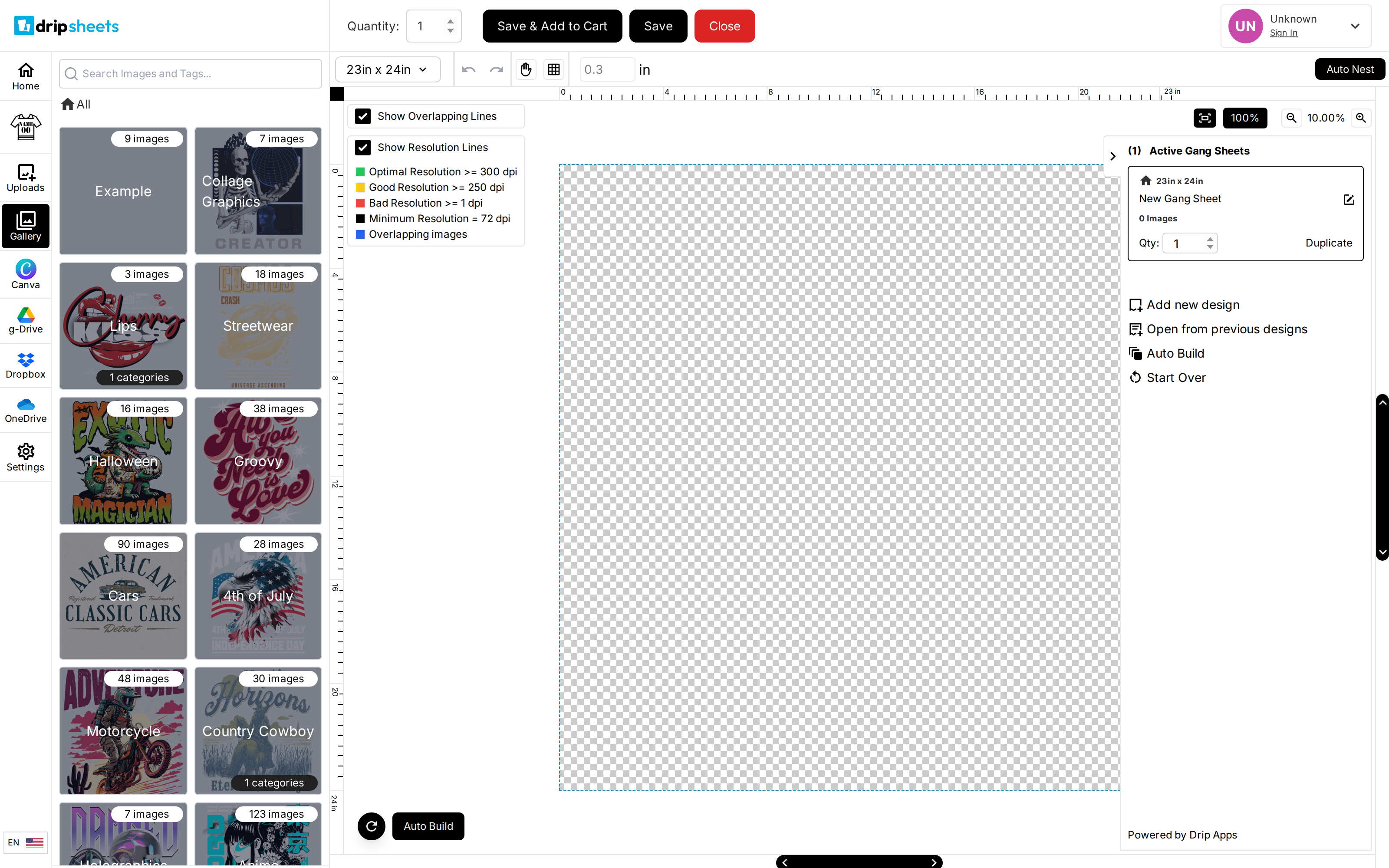
The controls across the top of the panel narrow the list down.
- Pick a category. Depending on how the shop has set the gallery up, this is either a Select Category... dropdown or a folder view you click into, with an All breadcrumb at the top to get back out. Folder tiles show how many images and how many sub-categories each one holds.
- Type into the search box — its placeholder reads Search Images and Tags.... It matches both the design's title and any tags the shop attached to it, so a search for "christmas" finds designs tagged that way even if the word is not in the name.
- Click Sort to order the results. The menu has three groups: Title (A to Z, Z to A), Date (Newest, Oldest) and Usage (Most Used, Least Used). You can combine one choice from each group.
The Sort button only appears if the shop has turned sorting on.
While you are looking at folder tiles rather than images, the search box filters the folder names instead of searching designs. Open a category first if you want to search the artwork itself.
Best Sellers and Favorites
Two checkboxes sit below the category control: Best Sellers and Favorites.
- Best Sellers shows only the designs the shop has flagged as its strongest sellers. They also carry a gold star in the top-left corner of the tile wherever they appear.
- Favorites shows only designs you have favorited.
These two checkboxes are filters, not sort orders. While either is ticked, the category control is hidden and the results are drawn from the whole gallery rather than the category you were in.
Favorite a Design
Click the heart in the top-right corner of any gallery tile. A grey outline heart means the design is not favorited; a solid red heart means it is. Click it again to remove the favorite.
Favorites are saved against your customer account, not your browser, so they follow you to any device you sign in on.
You must be signed in to your account for favorites to work at all. If you are browsing as a guest, the heart button and the Favorites checkbox are not shown.
Favoriting a design does not move it to the top of the gallery. It adds the design to the Favorites filter, which you tick to see only your favorites.
Browse Through the Results
The gallery loads ten designs at a time. Scroll to the bottom of the panel and the next ten are appended automatically. A numbered pager also sits in the footer, with previous and next chevrons on either side — clicking a page number jumps straight to that page and replaces what is on screen rather than adding to it.
About the Watermark
If the shop has watermarking on, gallery previews are stamped with the shop's name, logo or a short line of text. The panel says so directly above the grid: the watermark is there to protect the artwork online and is not part of the printed file.