
Steps
- Access the Gang Sheet Settings – 1. Click on the Gang Sheet tab in your navigation panel. 2. 3. Then click Update More . 4. 5. Alternatively, go to Settings → Settings → Gang Sheet tab. 6.
- Configure Gang Sheet File Preferences – Inside the Gang Sheet settings, you can configure: - Gang Sheet File Name Format - Edit Request Email - Print File Name - File Name Position - File Name Height - Gang Sheet File Type - Trim Empty Space at the Bottom - Upload to Dropbox
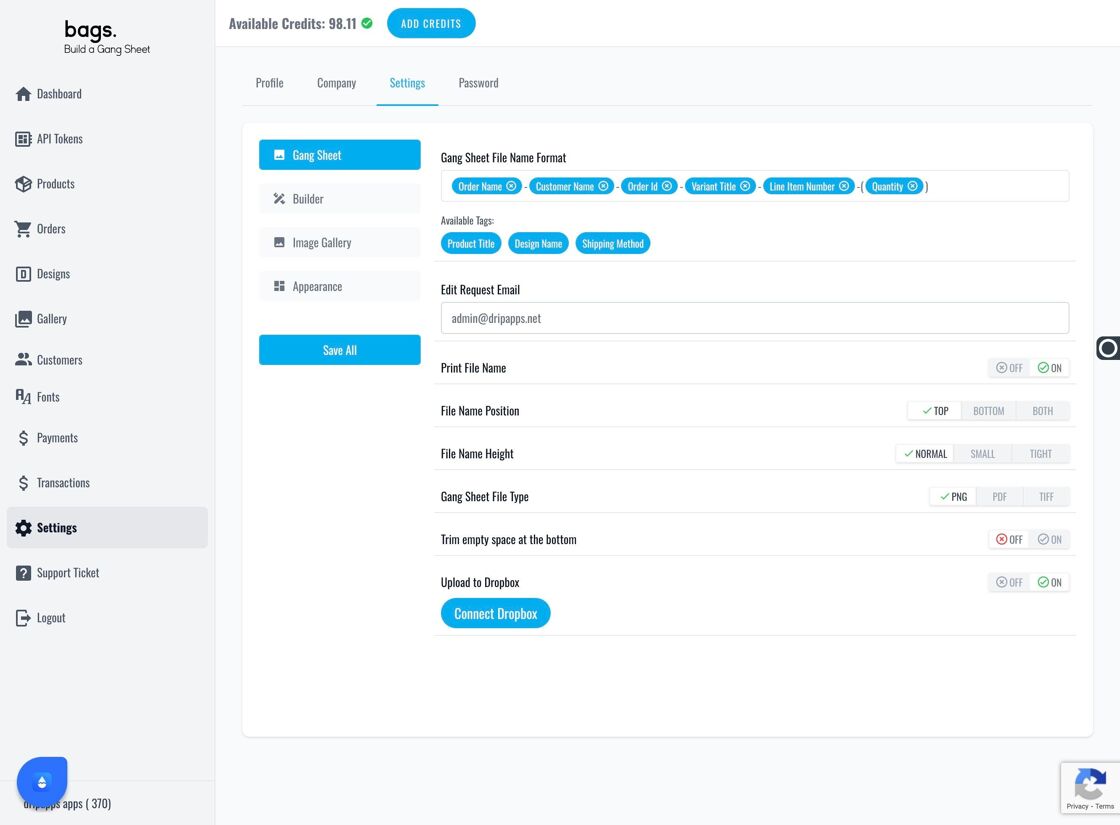
Gang Sheet Settings panel - Connect to Dropbox – 1. Scroll to the Upload to Dropbox section at the bottom. 2. You can integrate your business Dropbox account at any time. While the app has unlimited built-in storage, Dropbox offers another flexible storage option. 3. 4. Be sure to connect the correct Dropbox account that your business uses for file storage and fulfillment.
Tips for Optimal Use
- Use consistent file naming conventions to simplify organization.
- Dropbox can serve as an excellent backup or staging area for printer-ready files.
- Configure all options before enabling Dropbox sync to avoid confusion in file paths.