WordPress

Builder Settings: Auto Resize Image To Meet 300 DPI

1 min readUpdated 2025-07-01

Steps

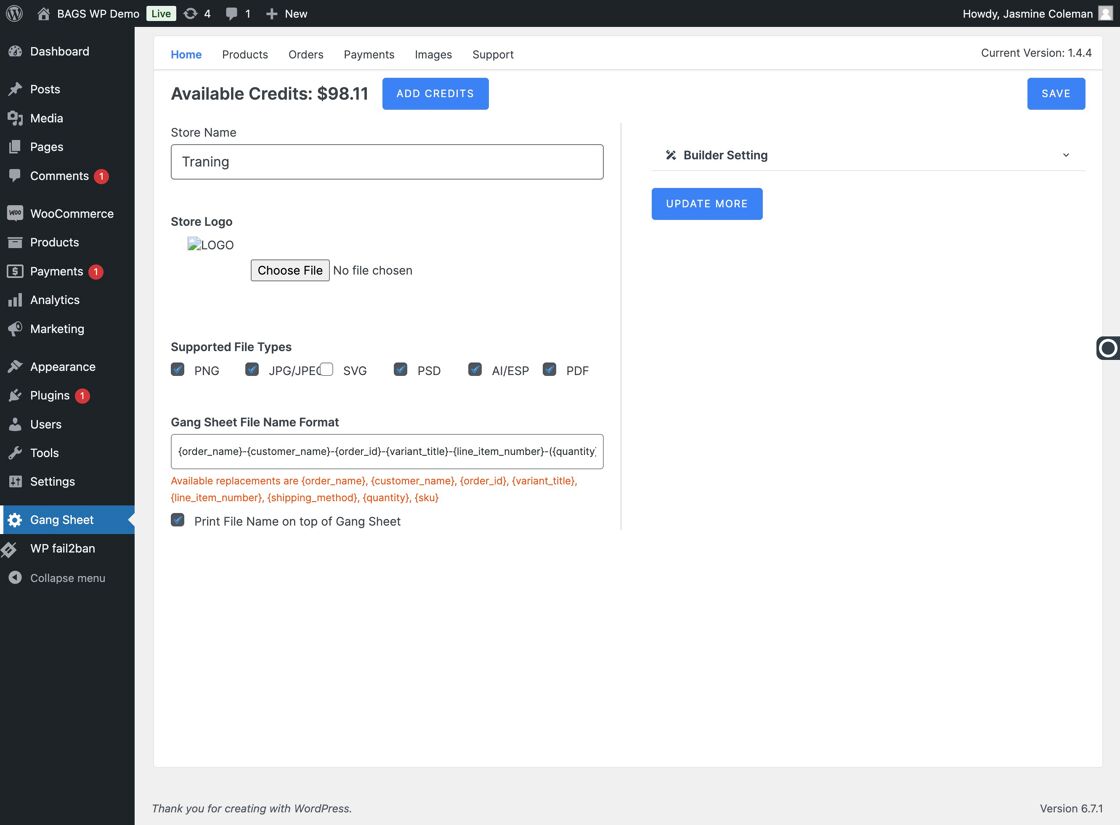
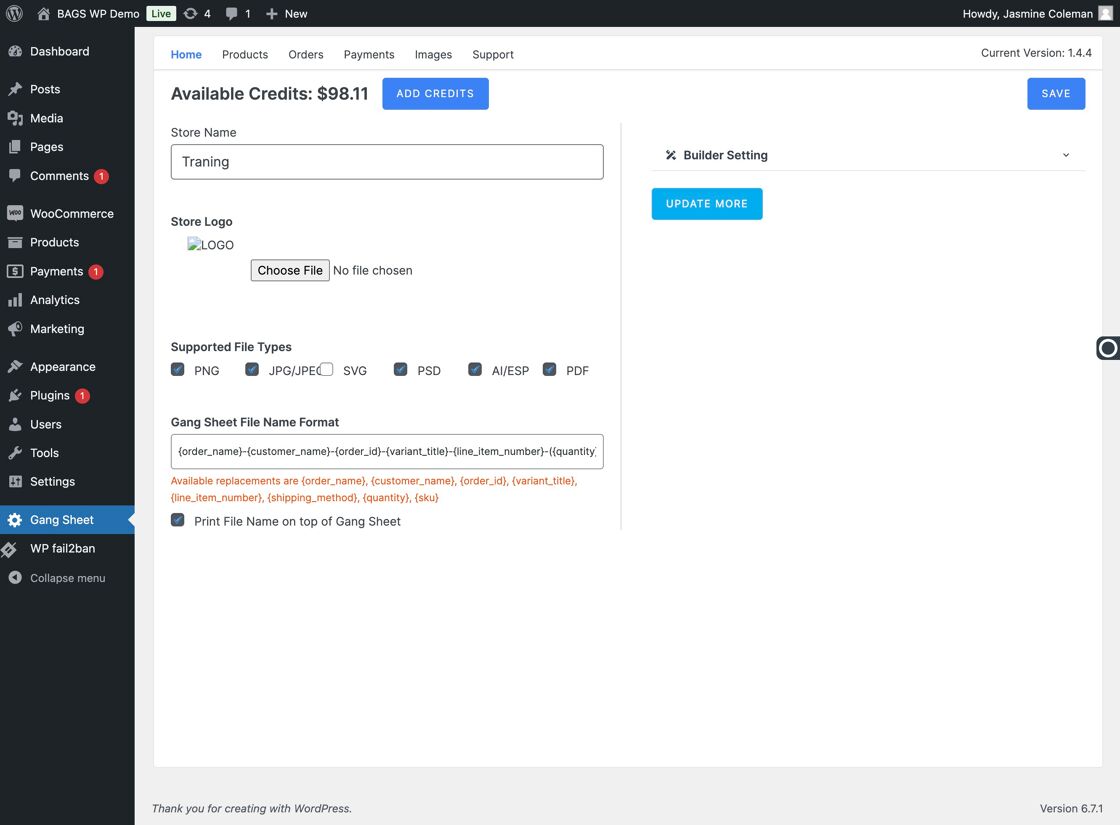
  • Navigate to Gang SheetClick Gang Sheet
  • Click Update MoreUpdate More Option
  • Steps

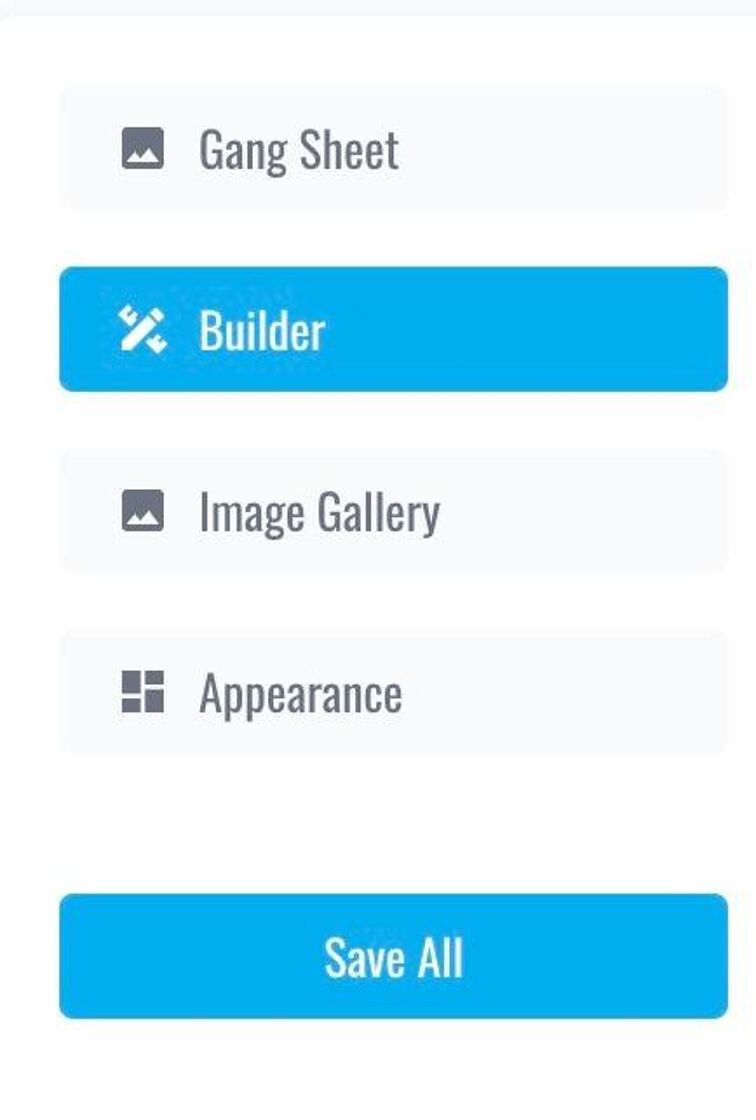
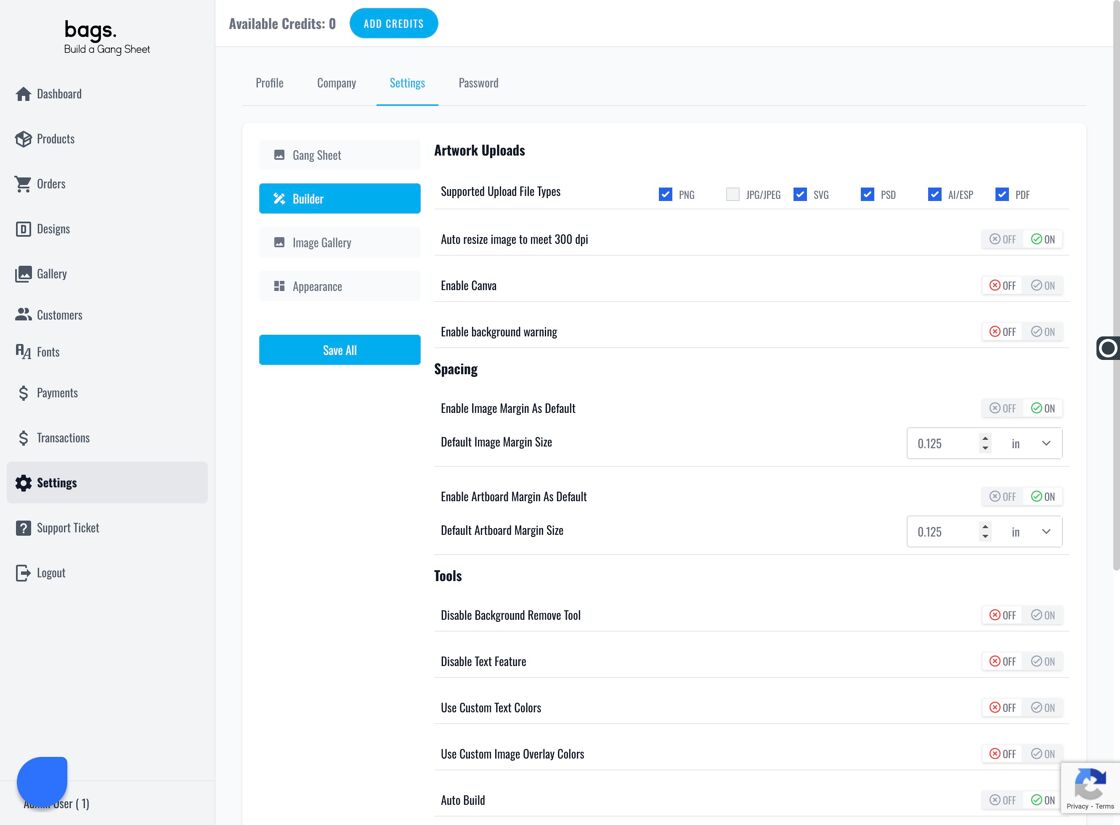
  • Locate the Auto Resize Option – Find “Auto Resize Image to Meet 300 DPI” within the Builder tab settings. Builder Tab Overview
  • Activate the 300 DPI Auto Resize Feature – This ensures that uploaded images automatically shrink to maintain optimal DPI for printing. Auto Resize Setting
  • 8–9. Resolution Warnings for Customers

    As images are enlarged, customers are visually warned up to three times about poor resolution via outlined boxes and alerts.
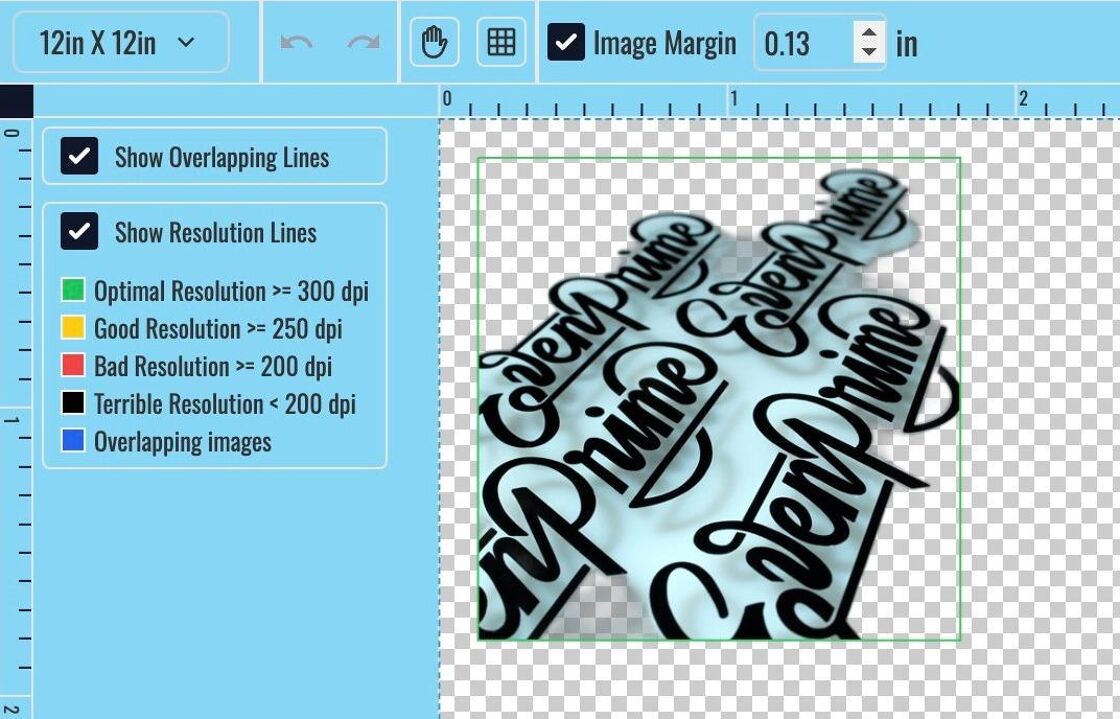
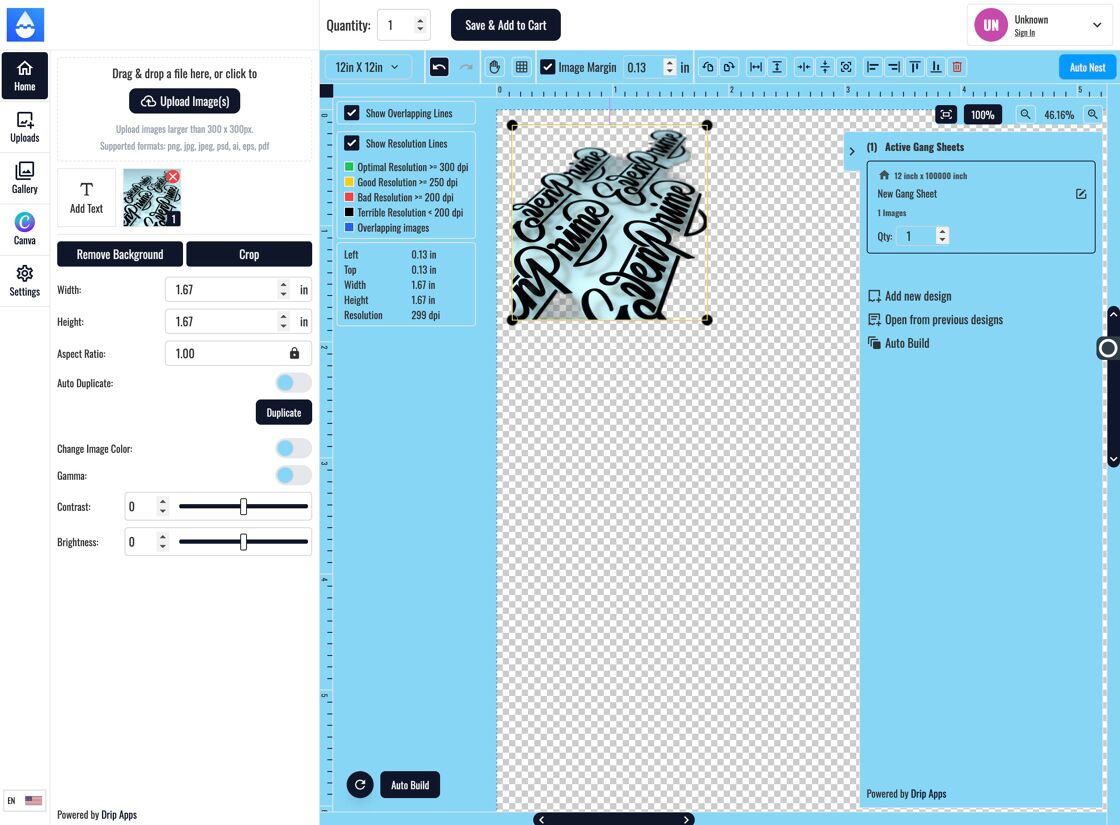
    Image Box Warning Enlarge Image Notice

    10–11. Warning at Add to Cart

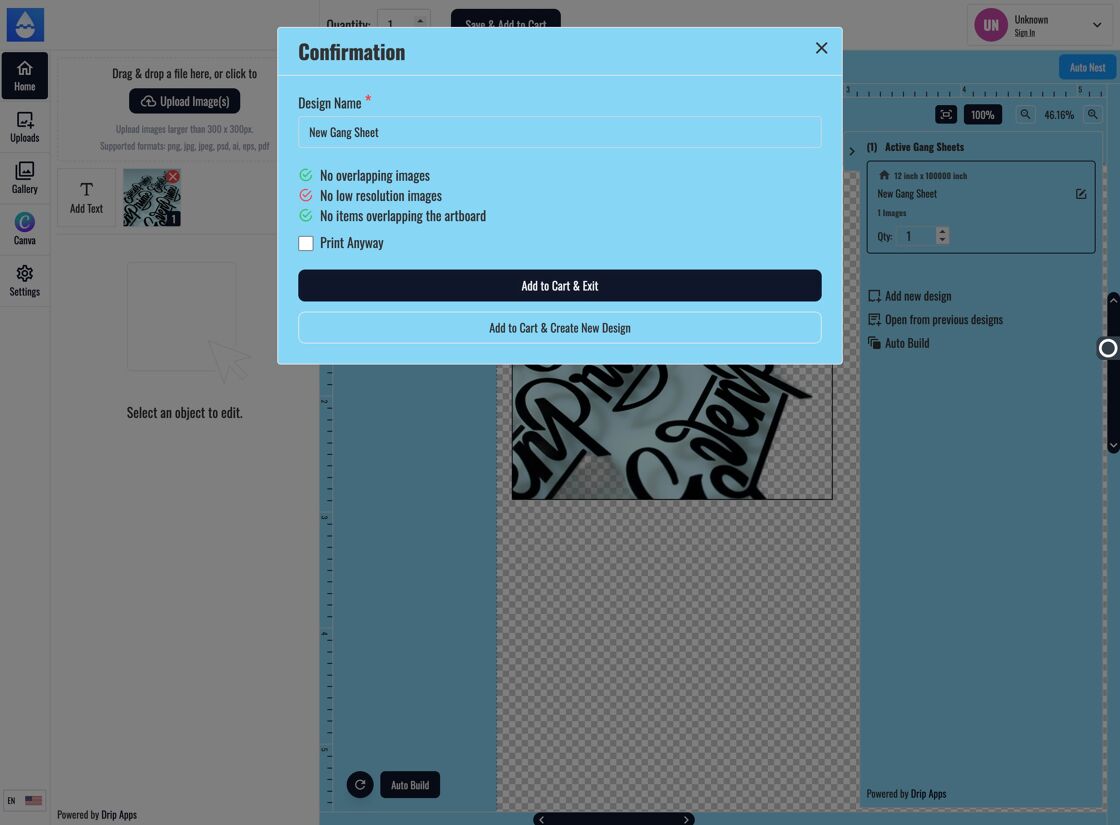
    Low-resolution warnings are shown again when customers attempt to save and add to cart.
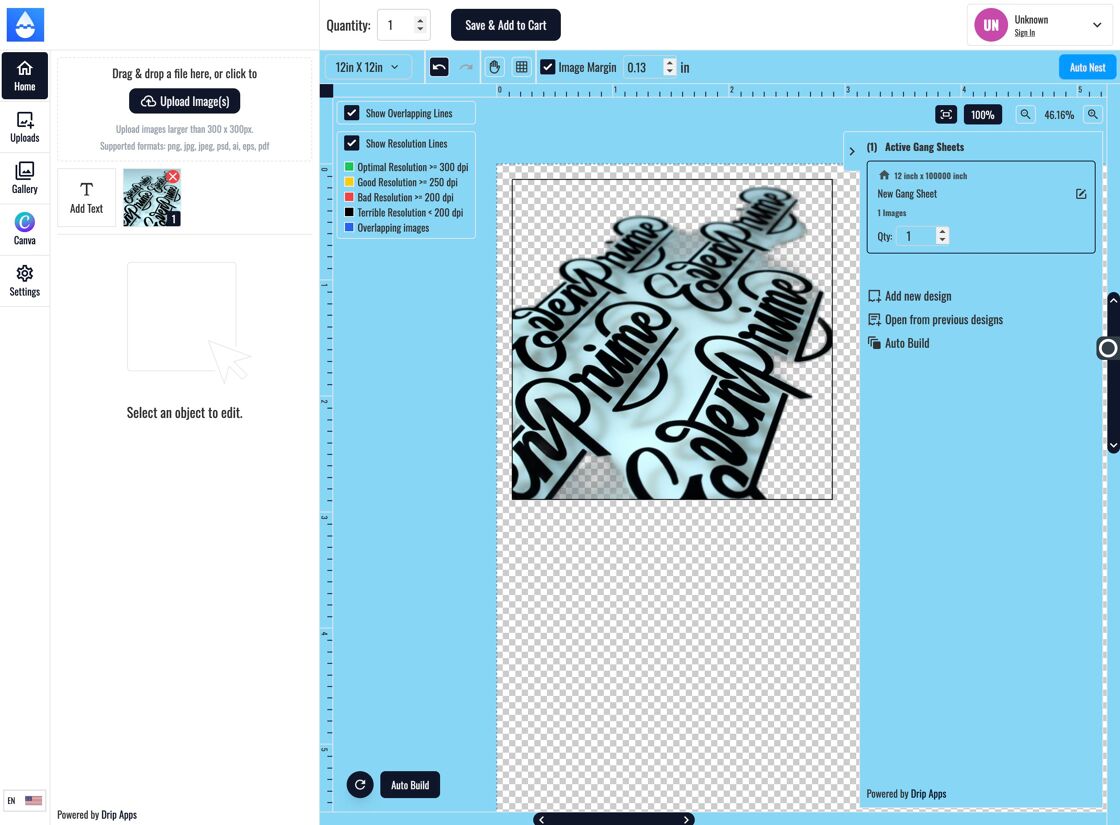
    Save & Add to Cart Resolution Warning

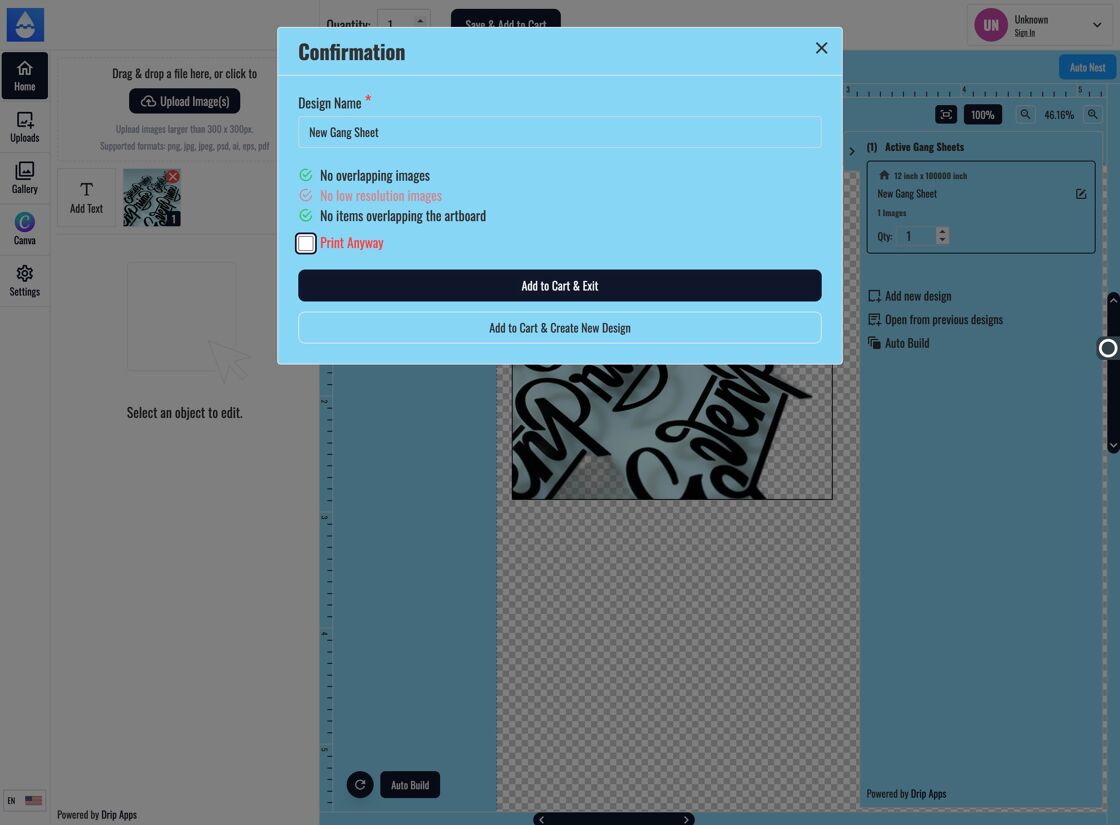
    12–14. Confirmation Required for Low-Res Images

    Customers must click "Print Anyway" before they are allowed to proceed to checkout.
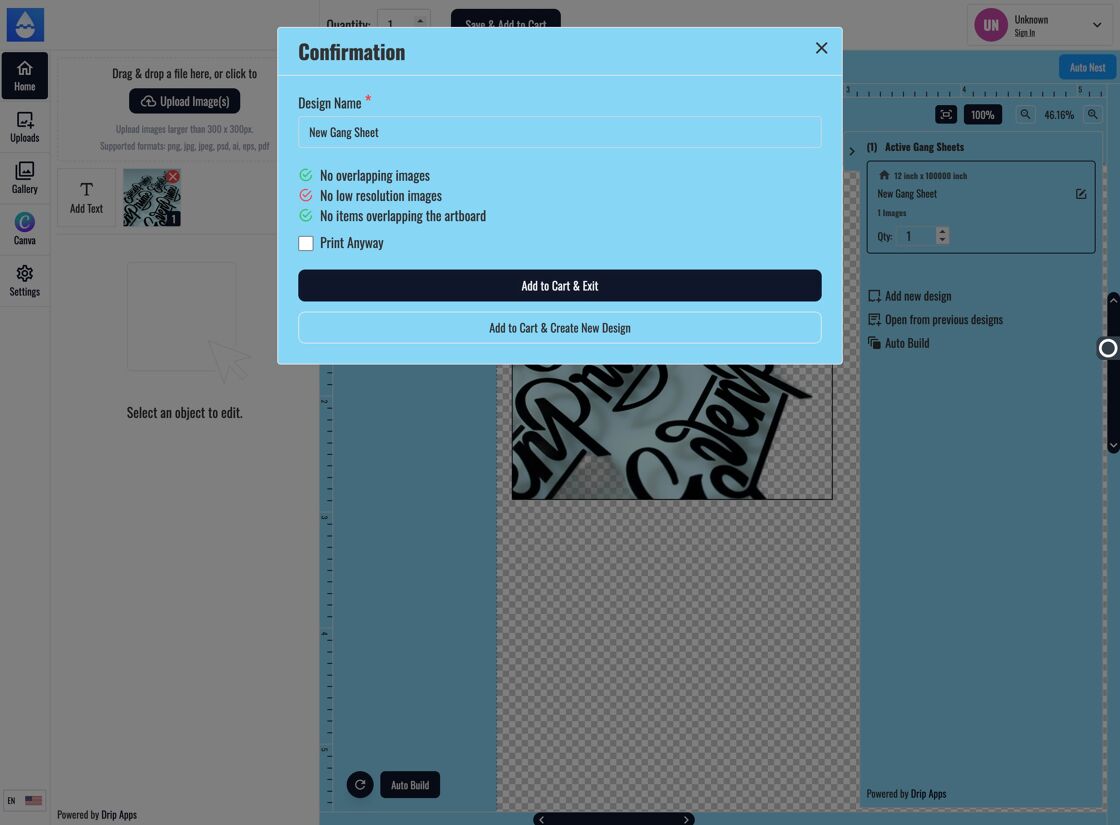
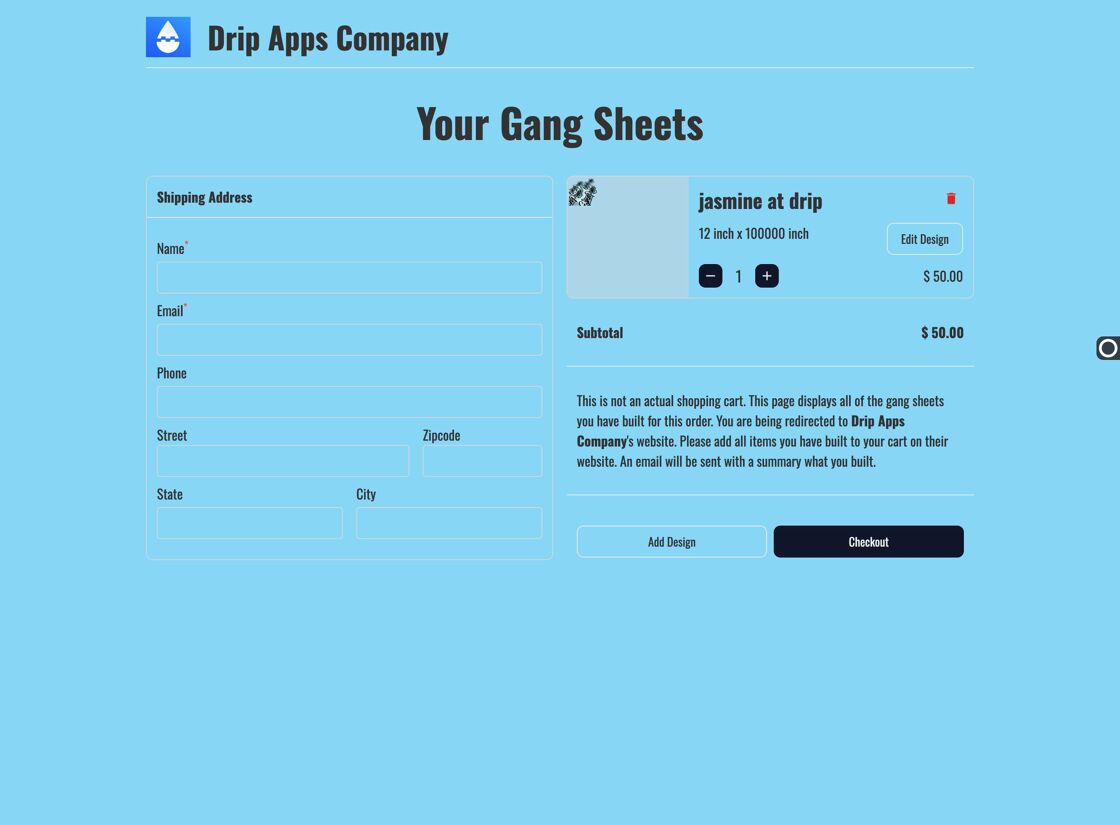
    Can't Add to Cart Yet Print Anyway Button Proceed to Checkout

    Was this article helpful?

    Let us know so we can improve our docs