
WordPress

Payments

2 min readUpdated 2025-07-01

Steps

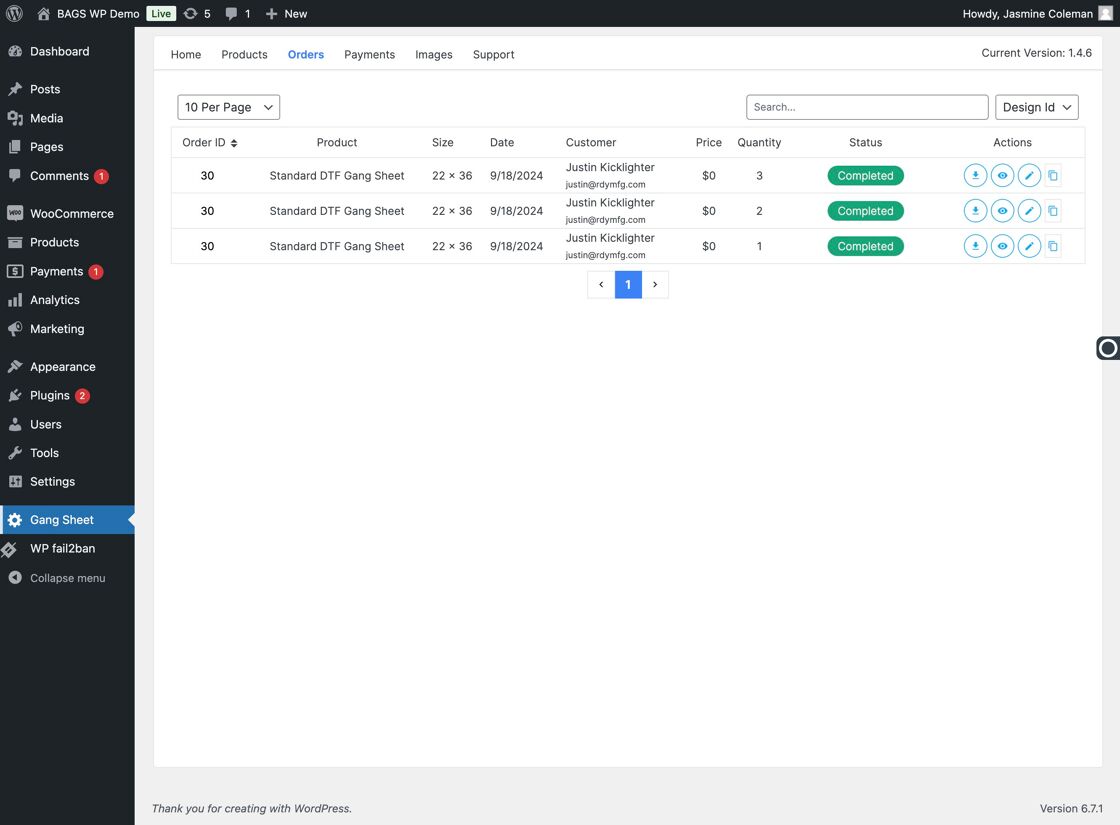
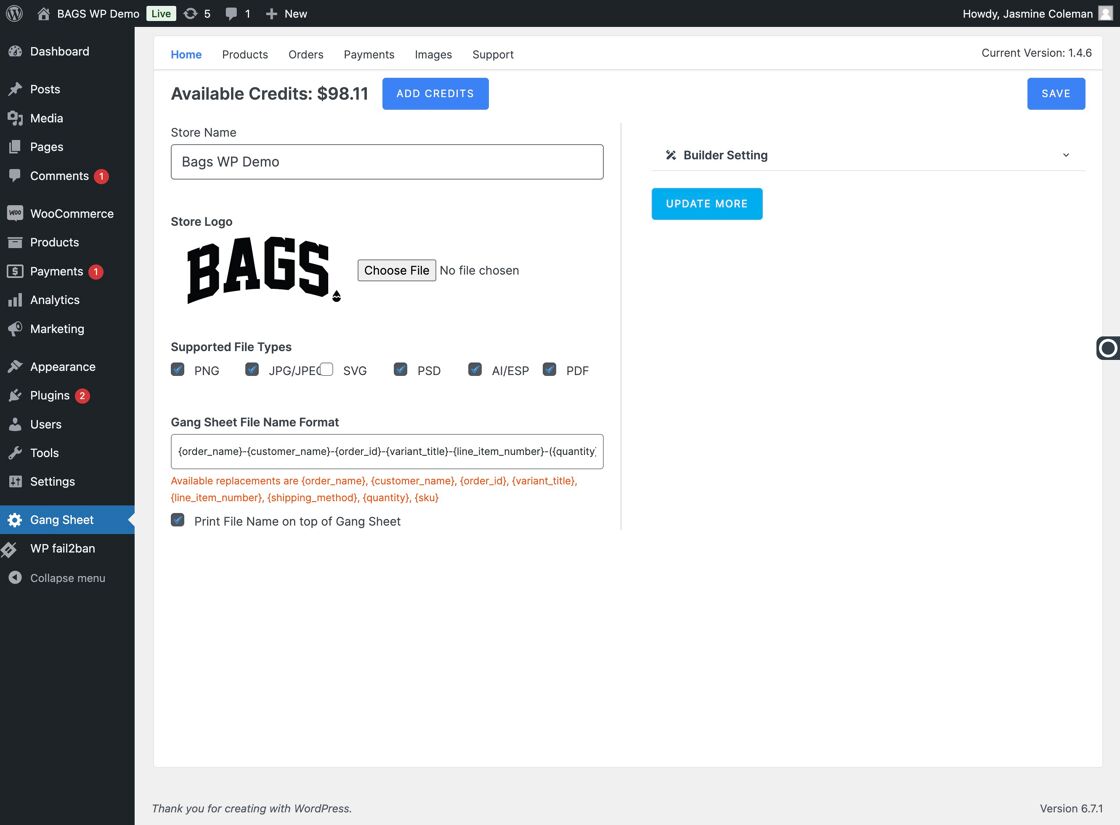
  • Navigate to the Gang Sheet Dashboard – Begin by selecting "Gang Sheet" from your main menu. Click Gang Sheet
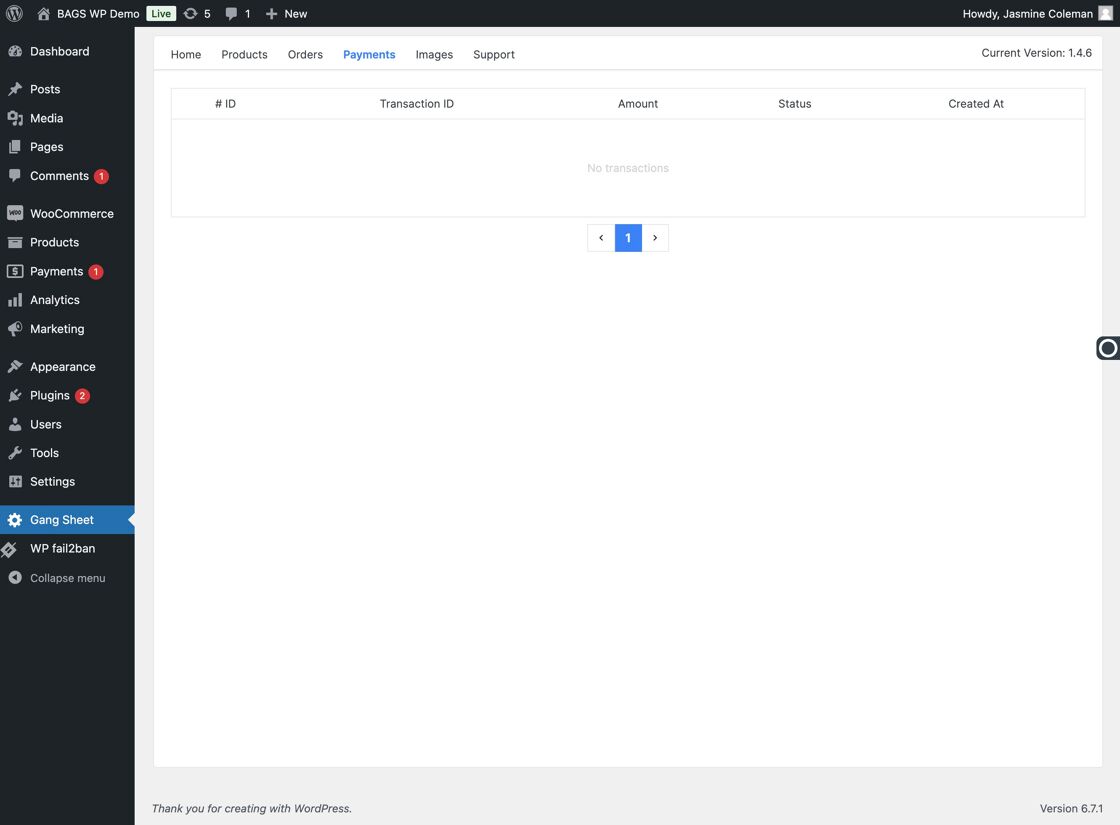
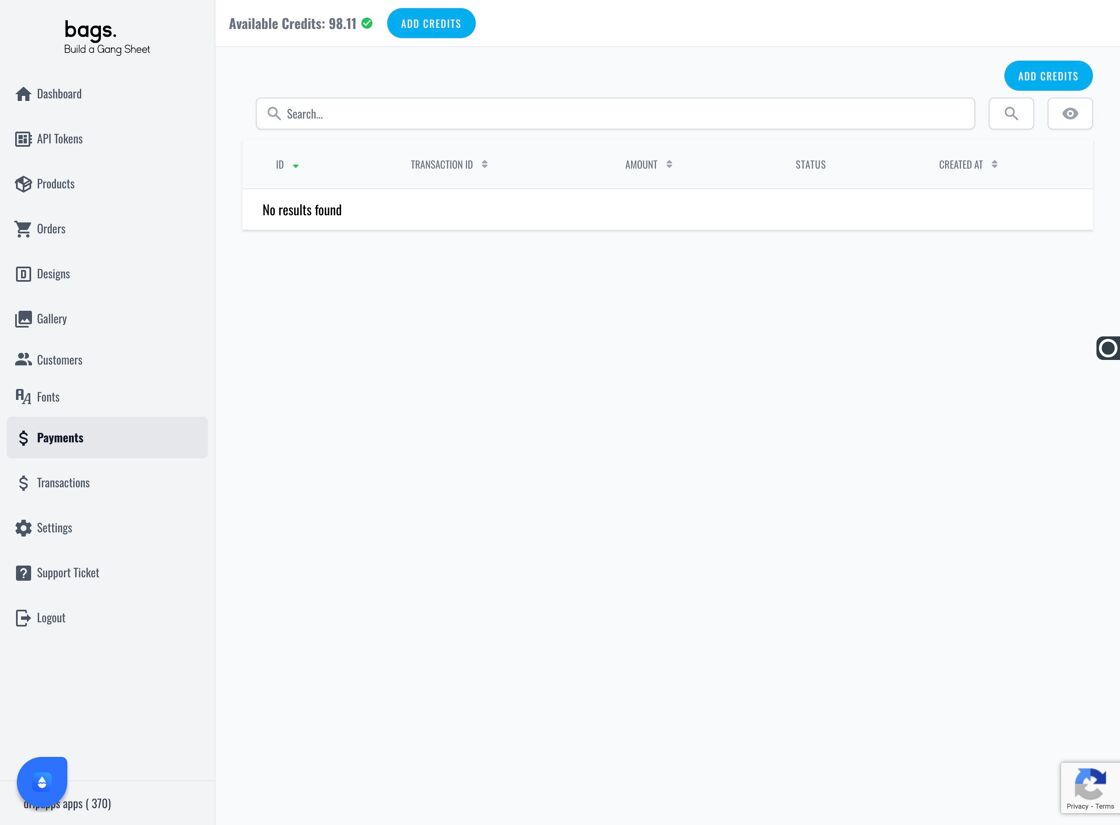
  • Open the Payments Tab – Select the "Payments" option to access transaction history and credit management. Payments tab
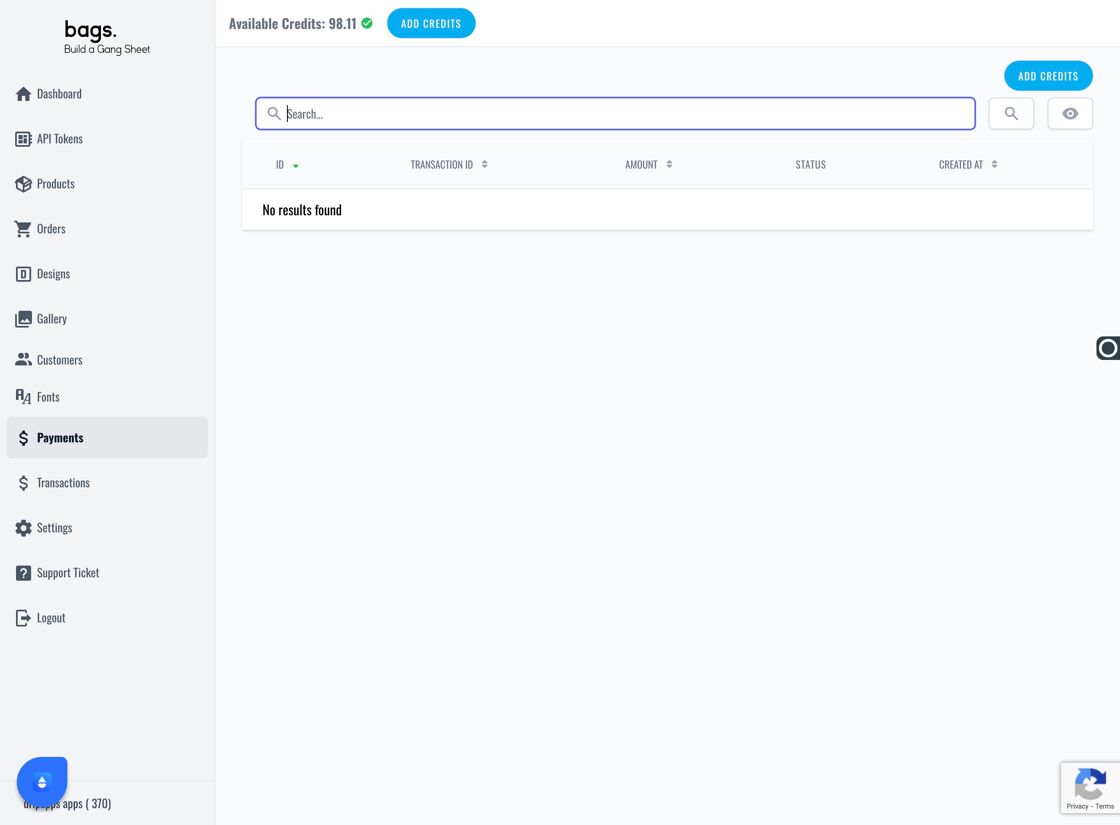
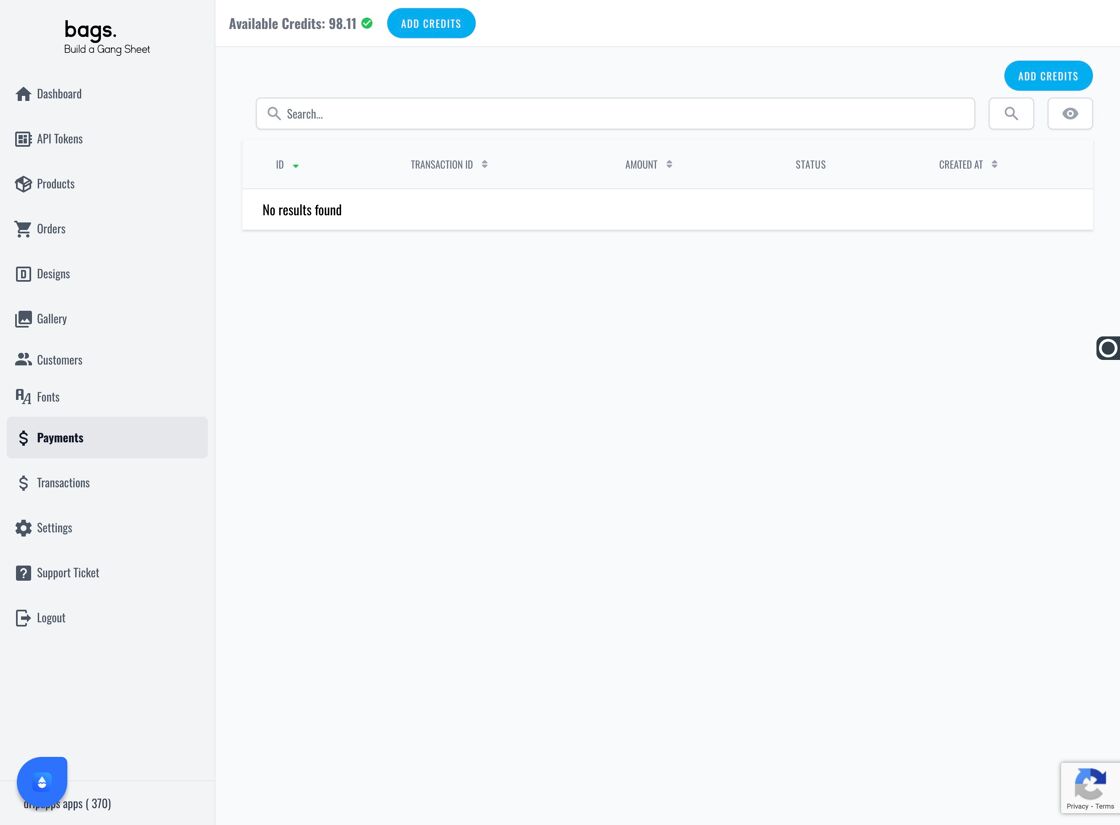
  • View Payment Transactions – All purchased credits and payment activity will be listed here for review. Payments Overview
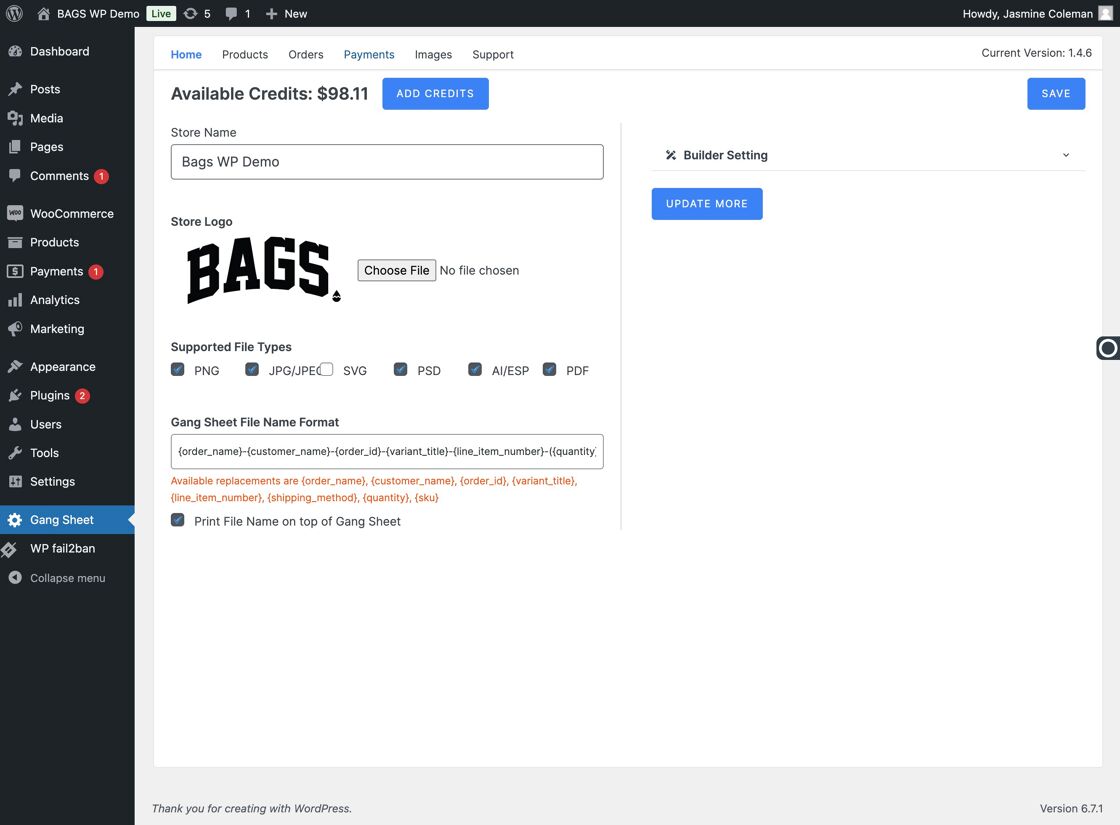
  • Return to Home – Click "Home" to return to the main menu if needed. Click Home
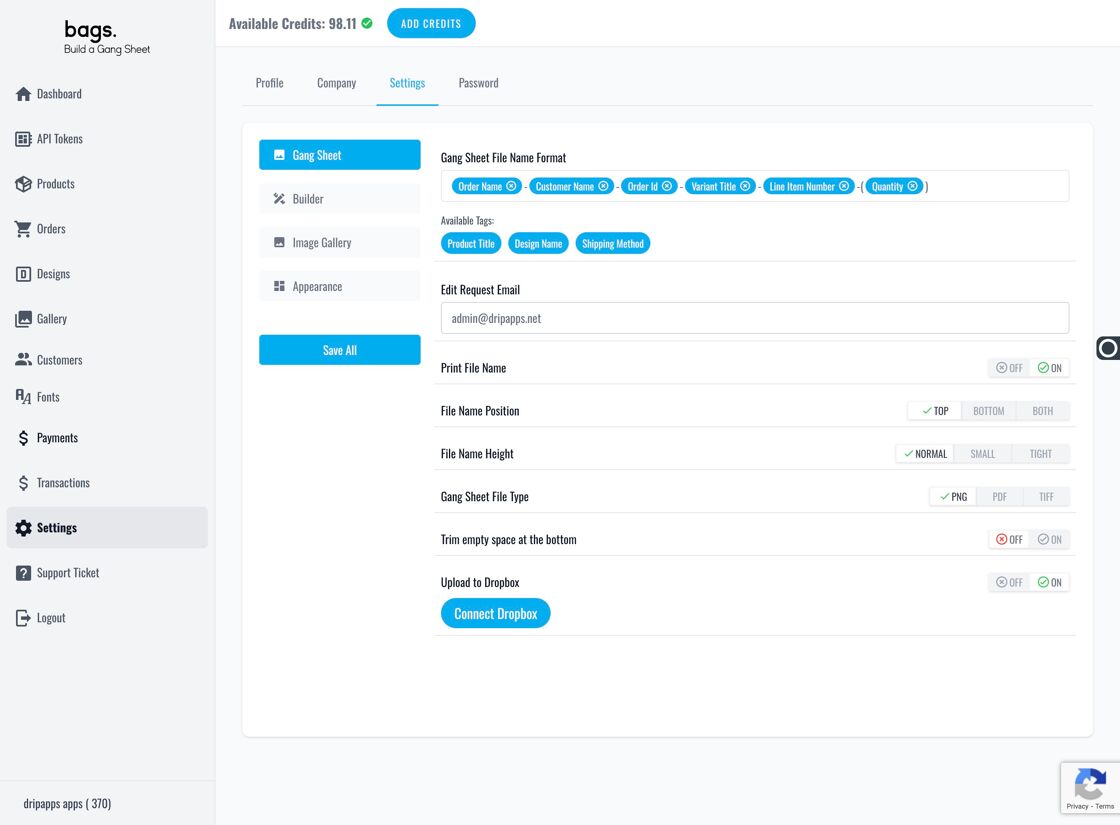
  • Navigate via Update More – From the Update More section, you can also access the Payments area again. Update More option
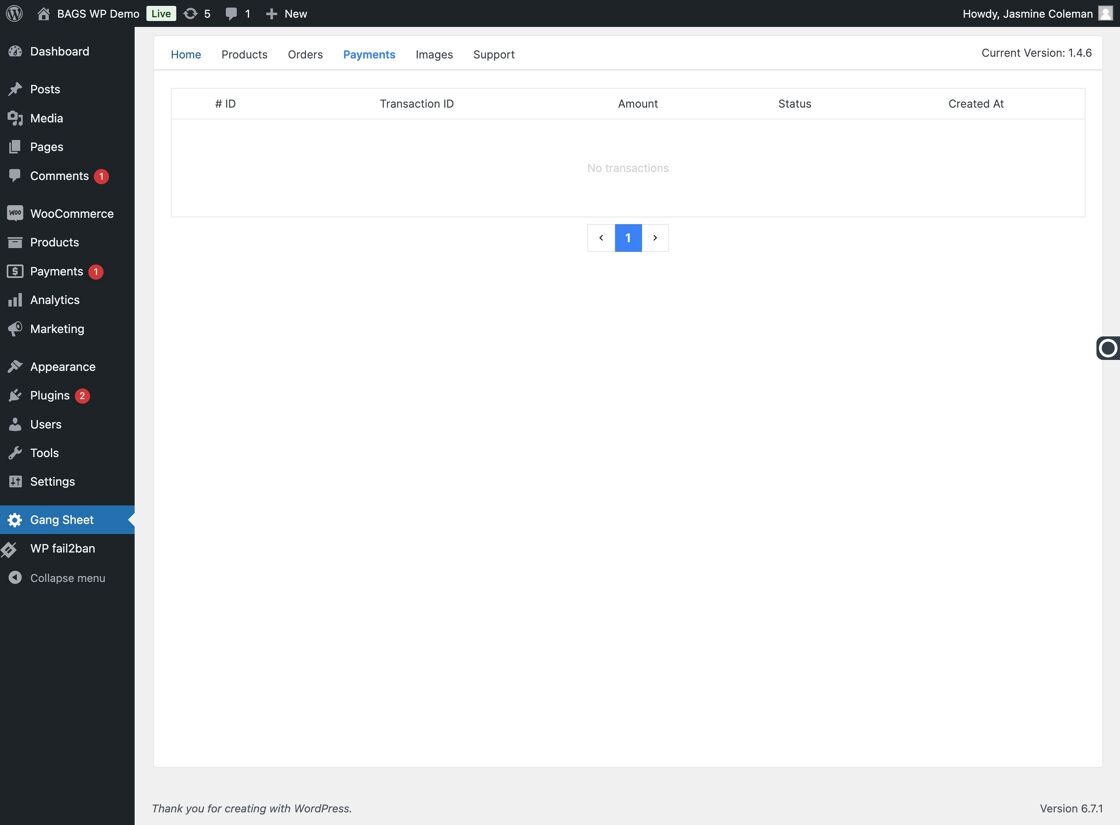
  • View Payment Data – Click on "Payments" again to reopen the tab if necessary. Open Payments Again
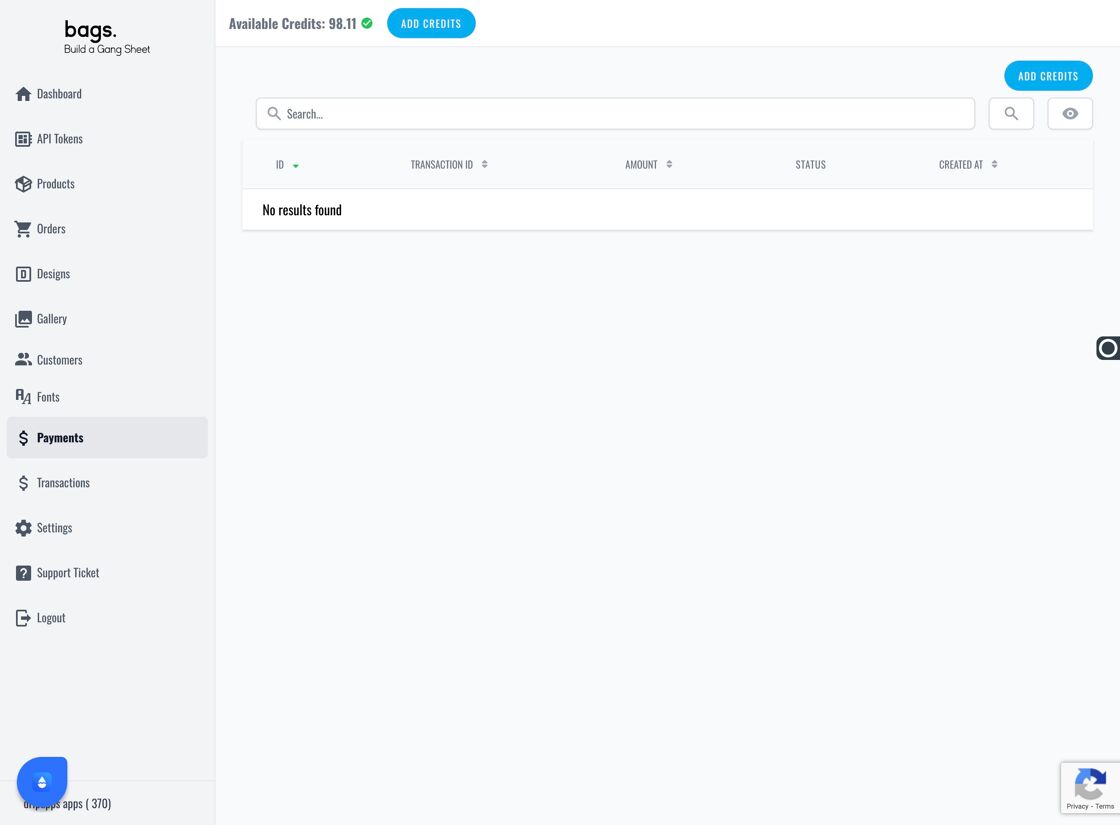
  • Handle No Results – If no data is displayed, the app will show "No results found" . This means no payment activity exists yet. No results found message
  • Search for a Transaction – Click the Transaction ID to view details or enter it in the Search field for faster access. Transaction ID Search Bar
  • Add Credit to Your Account – Click the Add Credit button to increase your available credit balance for ordering. Add Credit ### Tags gang sheet payments , credit purchase , transaction history , manage balance , payment settings , add credit
  • Was this article helpful?

    Let us know so we can improve our docs