
Connect Drip Surveys to Shopify Flow to automate follow-up, or to Klaviyo to segment customers by their answers. Both integrations start off disconnected and work independently of your notification emails and low NPS alerts.
Before You Start
- These integrations have no Unlimited-only restriction. The Free plan's response limit still applies: responses that are not saved because you reached the limit cannot start workflows or sync to Klaviyo. See Plans and Pricing.
- Install Shopify Flow if you want to use workflows. For Klaviyo, create a private API key with write access to Profiles and Events (
profiles:writeandevents:write). - New-response delivery requires a Shopify order whose email matches the email submitted with the survey. Responses without a matching order email are not sent, and neither are answers saved as unverified because Shopify did not return the order. See Duplicate or Missing Responses.
enabling either integration shares survey answers, including free-text and write-in answers. Only new saved responses with answers are sent; enabling an integration does not backfill past submissions.
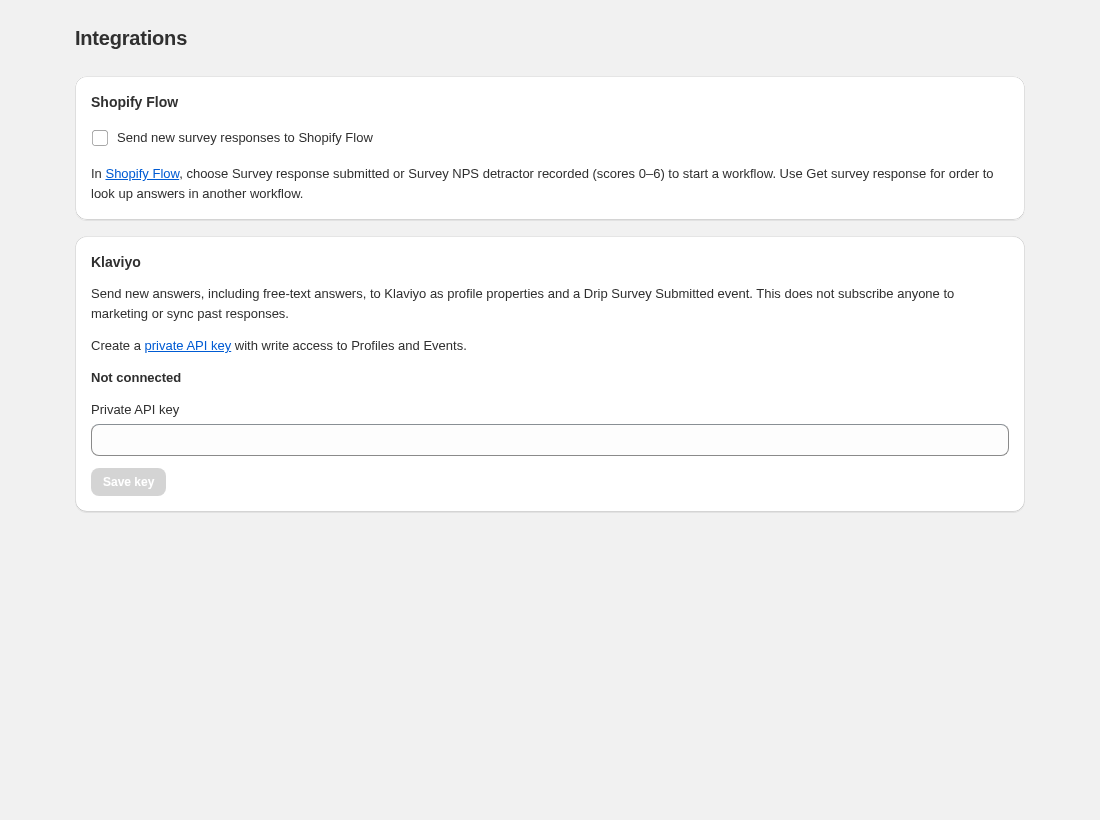
Enable Shopify Flow
- Open Drip Surveys in your Shopify admin.
- Go to Integrations.
- Check Send new survey responses to Shopify Flow. The change saves immediately.
- In Shopify Flow, create a workflow using Survey response submitted or Survey NPS detractor recorded.
- Configure your workflow's conditions and actions in Shopify Flow.
- Submit a new survey response on an order with a matching email to check your workflow.
Survey response submitted runs for an eligible new response. Survey NPS detractor recorded also runs when the lowest NPS score is 0–6. A score of 7 or higher does not run the detractor trigger. If there is no NPS answer, only the submitted trigger applies.
Both triggers provide the Shopify order and Survey response data:
| Field | Meaning |
|---|---|
id | Drip Surveys response ID. |
submittedAt | Submission date and time. |
npsScore | Lowest NPS score in the response, or null when there is none. |
answers | Entries with question and answer text. |
answersTruncated | True when some answers were omitted to fit the size limit. |
Look up an order's response
- Enable Send new survey responses to Shopify Flow in Drip Surveys.
- In another Shopify Flow workflow, add Get survey response for order.
- Supply the Shopify order to look up.
- Use
foundto check whether that order has a saved response before usingresponse.
The action returns the most recently submitted response for that order in your store, with the fields above. A response matches the order when its email matches the order's email, or when Drip Surveys verified it against that order when it was submitted — so a verified answer still matches if the order's email is edited later (responses saved before this check existed keep matching by email only). If Shopify no longer returns the order, for example after 60 days, it returns the most recently submitted response for that order, skipping answers saved as unverified. If no matching response exists, found is false and response is null. If Drip Surveys cannot look up the order in Shopify, the action returns an error with Could not look up the order in Shopify. Try again. Unlike the new-response triggers, this action can look up an older saved response.
Uncheck Send new survey responses to Shopify Flow to stop sending new triggers and disable the lookup action.
Connect Klaviyo
- Open Integrations in Drip Surveys.
- Follow the private API key link to create a Klaviyo private key with write access to Profiles and Events.
- Paste the key into Private API key. It must start with
pk_. - Click Save key.
- Submit a new survey response on an order with a matching email.
- Check the matching profile and Drip Survey Submitted event in Klaviyo.
The message Key saved. Submit a test response to verify it in Klaviyo. means the key is stored, not that Klaviyo has accepted it. Drip Surveys encrypts the key and does not display the saved value again.
To change credentials, enter a key in New private API key and click Replace key. Click Disconnect to stop future syncs. Disconnecting does not delete data already sent to Klaviyo.
What Klaviyo receives
Drip Surveys creates or updates a profile using the matching order email. Each answer becomes a profile property named Drip Surveys: followed by the question text, such as Drip Surveys: How did you hear about us?. Repeated question text produces a list of answers for that property. NPS responses also set Drip Surveys NPS score to the lowest score.
New submissions update the properties they contain; they do not clear older properties for questions that are absent. An older delivery retry does not overwrite a newer successfully synced profile response.
The Drip Survey Submitted event includes:
Response IDandOrder ID.Answers, withquestionandanswertext for each included answer.Answers truncated, indicating omitted answers.NPS score, only when an NPS answer exists.
The event uses the original submission time and a stable ID per store and response to deduplicate retries. This integration does not subscribe customers to a list or change marketing consent.
Limits and Delivery Problems
- Both integrations cap the serialized answer list at about 45,000 bytes. When the next answer would exceed the budget, that answer and the remaining answers are omitted. The NPS score is still included, and the truncation flag is true.
- Delivery runs in the background, so it may not appear immediately. Turning off Flow, disconnecting Klaviyo, or uninstalling Drip Surveys stops pending deliveries for that connection. Replacing the Klaviyo key also stops jobs queued with the old key.
- Flow retries temporary order lookup failures and explicit throttling, but does not replay a trigger whose delivery is uncertain, to avoid duplicate workflow runs. A missing workflow run is therefore not always retried.
- If the settings page cannot load, reload it. If saving fails, try again. A key-format error shows Enter a Klaviyo private API key that starts with pk_.
- If a saved Klaviyo key produces no event, check its Profiles and Events write access and test with a new response whose email matches the order. Saving does not validate the key against Klaviyo.